Use AI to Write and Review PowerShell Scripts Safely
An AI assistant can draft PowerShell or explain an unfamiliar command. The administrator still needs to understand what the script reads, changes, downloads and exposes. Treat generated code as a proposal awaiting review, not as a trusted instruction to paste into an elevated session.
This guide uses a small file-inventory task so its behavior can be checked independently. It does not require an AI account or a production server to validate the reference implementation.
Specify a narrow contract
Start with the desired result and constraints. For this example: list .log files under one directory, include subdirectories, return structured file properties, and leave source files unchanged.
Propose a PowerShell function that accepts an existing directory
as a parameter and lists .log files recursively. Return objects
with FullName, Length and LastWriteTime. Handle literal directory
names containing brackets. Fail clearly for a missing directory
or an enumeration error. Do not delete files, change permissions,
download code, invoke external services or request elevation.
Explain the scope and limitations before showing the code.
The request limits the task, but a prompt does not enforce operating-system permissions. Review the response before running any of it.
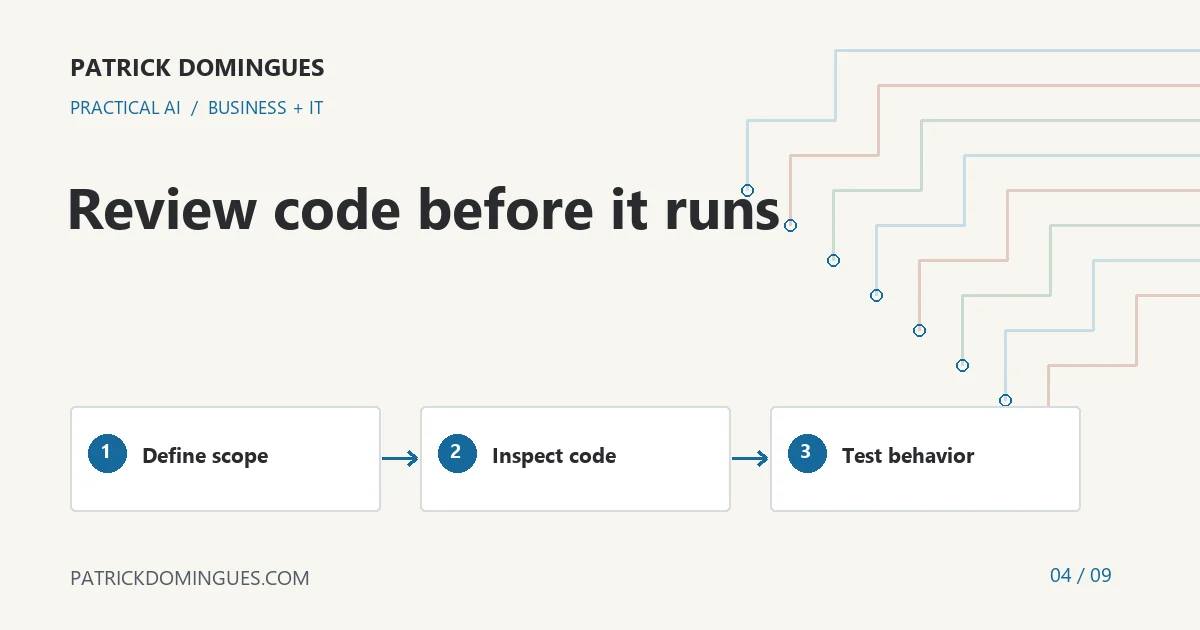
Inspect the entire proposal
Look for destructive cmdlets, external process launches, encoded commands, downloads, credentials, broad paths and suppressed errors. Check aliases as well as full command names. A script can do more than its title suggests.
Confirm that parameters are actually used and that examples do not hard-code a customer’s path. Check the supported PowerShell version and required modules against official documentation. If an explanation and its code disagree, stop and resolve the discrepancy.
Compare with a reviewable implementation
This reference function reads file metadata without opening log contents or writing a report:
function Get-AILogInventory {
    [CmdletBinding()]
    param(
        [Parameter(Mandatory = $true)]
        [ValidateNotNullOrEmpty()]
        [string]$Root
    )
    if (-not (Test-Path -LiteralPath $Root -PathType Container)) {
        throw 'Root must be an existing directory.'
    }
    Get-ChildItem -LiteralPath $Root -Filter '*.log' -File -Recurse -ErrorAction Stop |
        Select-Object FullName, Length, LastWriteTime
}
Call it with a small test directory you control:
Get-AILogInventory -Root 'C:\Lab\sample-logs'-LiteralPath handles the root directory as a literal path. -File excludes directories that happen to end in .log. -Filter narrows the enumeration, while -Recurse includes subdirectories. Errors are surfaced instead of silently presenting an incomplete inventory as a complete result.
The function uses normal file-enumeration behavior: hidden files, permissions, links and filesystem differences require separate consideration for a real inventory. Read access to a directory is still access that must be authorized.
Test behavior, not just syntax
Use disposable fixtures containing a nested log, a non-log file, a directory named archive.log, an empty directory and a root name containing brackets. Also test a missing path and a file supplied where a directory is required.
Verify returned paths, properties and file sizes directly. Snapshot the fixture files before and after to confirm the read-only contract. A script that parses successfully can still enumerate the wrong scope or hide an error.
The published reference function was checked against these fixtures in PowerShell 7 and Windows PowerShell 5.1. Those checks apply to this function and test environment, not to arbitrary AI-generated variants or every remote filesystem.
Expand scope deliberately
If a later revision adds CSV export, deletion or remote administration, write a new contract and tests for the new behavior. Reusing a previously reviewed function does not automatically approve its modified version.
Keep the final script, test evidence and ownership in your normal change process. For file reports, see the PowerShell CSV inventory guide. For interpreting output, continue with AI-assisted log analysis or the AI pillar.
Primary references