Install Windows 11 in VirtualBox with Correct VM Settings
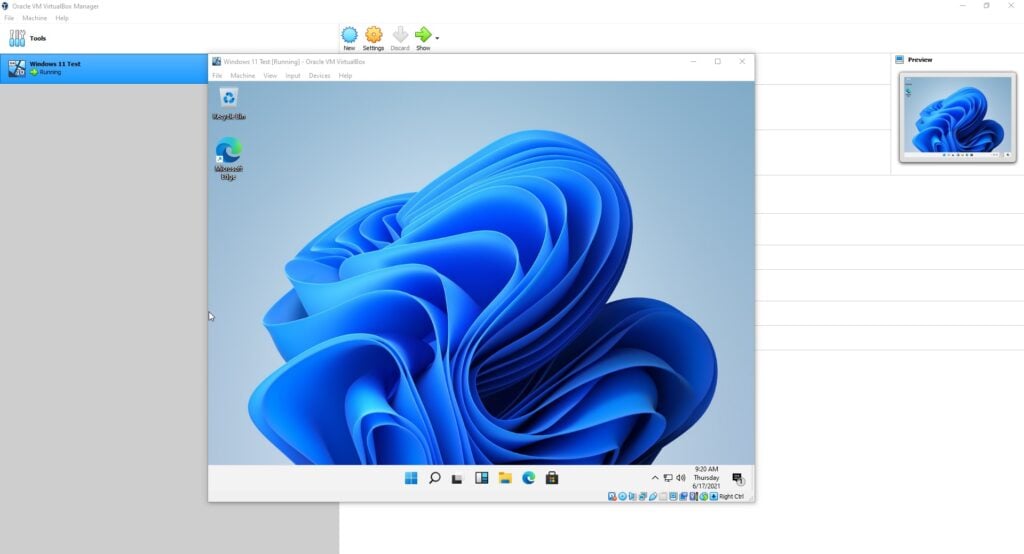
Install Windows 11 in a compatible VirtualBox virtual machine with resources and security settings that meet the guest requirements. Keep the test environment isolated and recoverable.
Check host and guest compatibility
Use a current supported VirtualBox release and verify that its host architecture can run the intended Windows 11 guest. Obtain Windows installation media from Microsoft and confirm licensing for the intended use. Do not rely on an old Windows 10 guest preset or unsupported requirement bypasses.
Microsoft lists baseline Windows 11 requirements including at least 4 GB RAM, 64 GB storage, a compatible two-core processor, UEFI/Secure Boot capability and TPM 2.0. Reserve sufficient capacity for the host as well as the guest; minimum requirements are not a performance recommendation.
Create a Windows 11 virtual machine
In the VirtualBox wizard, select the matching Windows 11 guest type and installation ISO. Review memory, virtual CPUs, virtual disk capacity, firmware and virtual TPM settings against Oracle’s current guide and the selected Windows edition.
The previous article’s 2 GB memory recommendation has been removed because it does not meet Microsoft’s stated Windows 11 minimum. A dynamically allocated virtual disk still needs enough real host space as it grows.
Install and update
Start the virtual machine and complete the Microsoft installer using legitimate activation and account requirements. Verify the actual guest disk and avoid attaching unrelated host disks during a disposable test installation.
After installation, apply Windows updates and install the appropriate Guest Additions following Oracle’s documentation. Review optional features, shared folders and clipboard integration before enabling them; they cross the isolation boundary between host and guest.
Validate the lab
Test shutdown, restart, networking and the workloads the lab is meant to run. Choose NAT, bridged or isolated networking deliberately instead of exposing a test guest to the same network as production systems by default.
Take a snapshot before a controlled experiment when useful, but keep independent backups for anything important. Snapshots depend on the virtual disk chain and host storage; they are not a separate recovery copy.
For installation errors, collect the VirtualBox version, host/guest architecture, firmware/TPM settings and exact Windows message. Resolve compatibility and configuration rather than simply lowering the guest requirements until an installer proceeds.
Practical checks and next steps
Verify the guest requirements against the Microsoft specification and the installed VirtualBox manual. Keep important files backed up independently of virtual-machine snapshots.
Explore Virtualization & Containers for related guides.
Content review: November 24, 2026. Reviewed the stated scope, guidance and source references; tenant, hardware and production changes were not executed as part of this editorial review. Original publication date retained.